
Advertorial
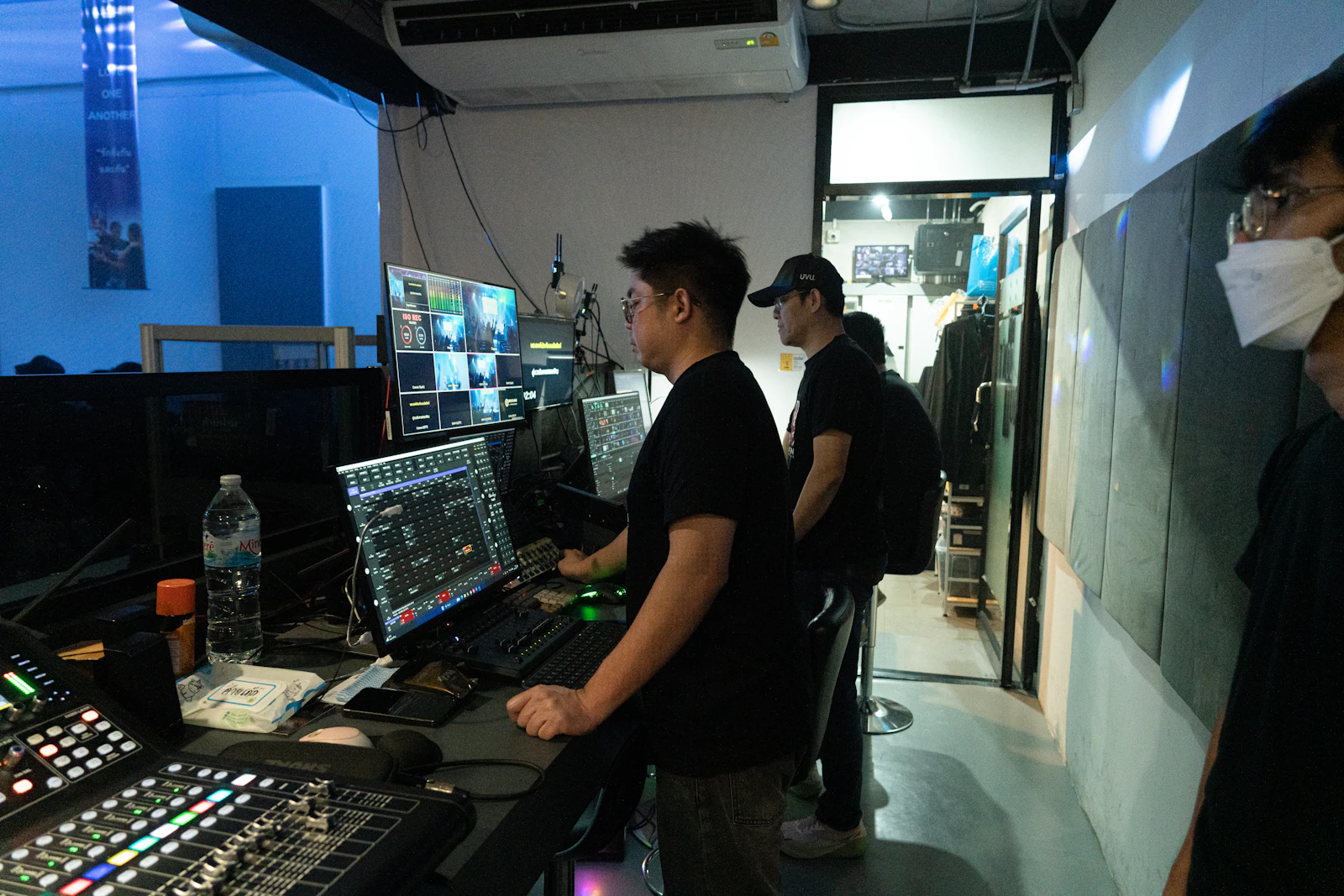
Production crew standing at a live video control desk with a multiview monitor, switcher panels and an audio mixing console in a dim room
DATE READ4 min STAGES04

Every streamed frame runs on a quality budget. Here is where it gets spent.

Four stages draw on the same limited supply of picture detail. Knowing which one spends the most makes any streaming service easier to judge.

A video frame arrives with a fixed allowance of detail. The camera sets its size, and every stage after it can only spend from it. None of them can top it back up.

01Capture sets the size of the allowance

Resolution is the visible part of the budget, but a pixel grid is only a container. Focus, lens quality, light and sensor noise decide how much real texture fills it. Editing and grading can then protect or trim that detail, so the best a stream can ever look is settled before it leaves post-production.

Black-and-white photo of a camera operator wearing an intercom headset, holding a rigged mirrorless camera with a wireless video transmitter
FIG 01Lens, light and sensor fix the ceiling. Nothing later in the chain can raise it.

02The encoder is the biggest spender

To stream, a master file is compressed with a codec such as H.264, HEVC or AV1. The bitrate, the data allowed per second, is the real spending limit. With enough of it, fabric weave and leaf edges survive. Squeeze it, and fine detail goes first, while dark gradients can break into visible bands.

Services also prepare several versions of each title at different resolutions and bitrates, a ladder the player can climb up or down. That is why a well-funded 1080p stream can look cleaner than a 4K one starved of data.

Resolution tells you the size of the canvas. Bitrate tells you how much paint was allowed on it.

03Delivery, device and screen settle the account

During playback the player picks the highest rung your connection can sustain and steps down when speeds dip, so a brief soft patch usually beats a frozen screen. Your device then decodes each frame, ideally in dedicated hardware. Finally, picture mode, viewing distance and room light decide how much of the surviving detail you actually notice.
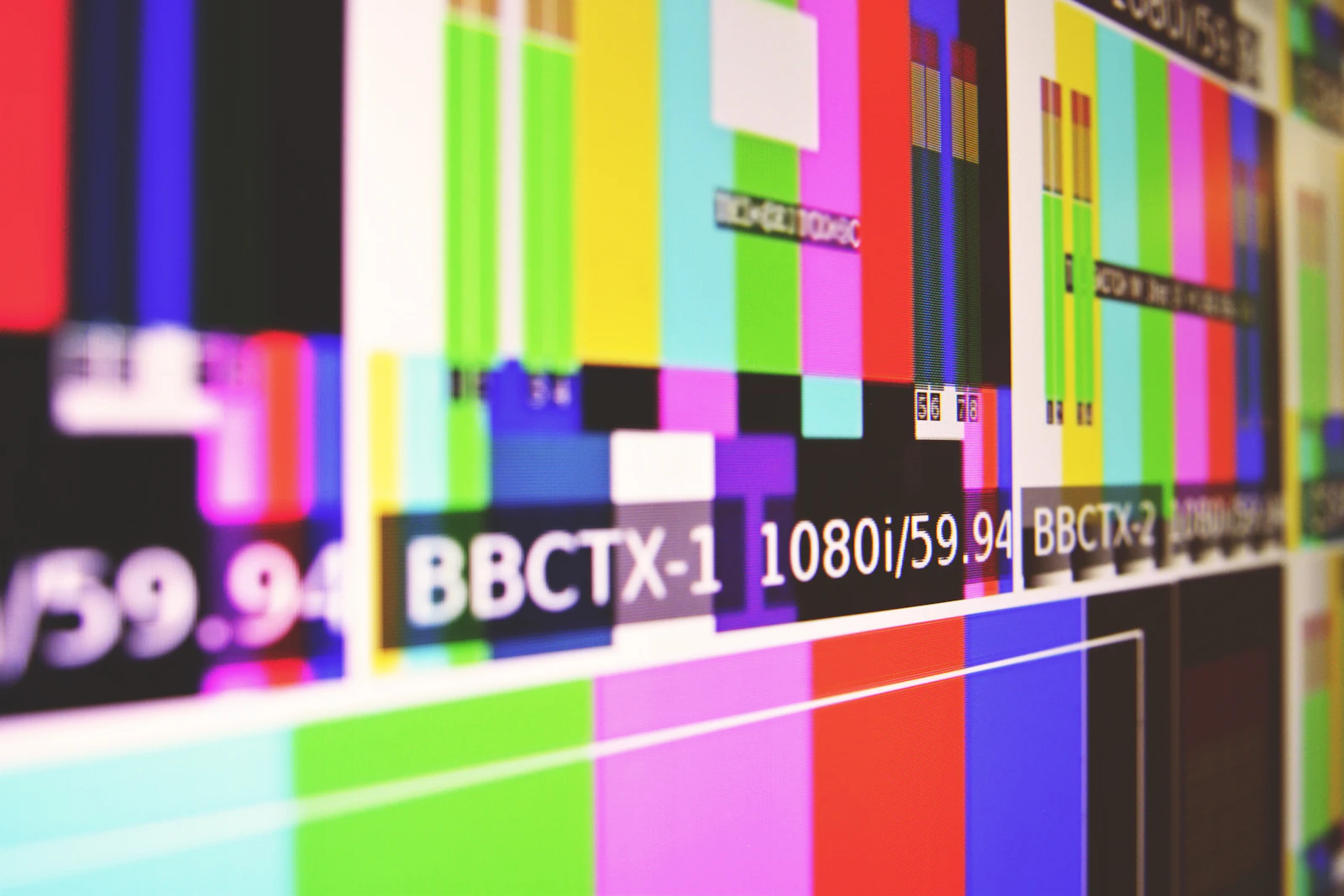
Close-up of a display showing broadcast colour bars with a 1080i/59.94 format label
FIG 02A calibrated picture mode shows the image closer to how it was mastered.

04Weighing the linked membership

Price says little about picture quality on its own. Match a service's stated formats and device support against your own screens, then sample titles you would really watch. The links on this page lead to a third-party provider offering a paid adult membership. Its pricing, renewal, cancellation and data handling are set by that provider, so read its current terms on its own site.

See the Provider's Terms

Reviewing the offer in four steps

  1. Open the provider page

    Read how the provider describes the membership.

  2. Match your devices

    Check supported devices, Apps and browsers.

  3. Read the terms

    Note price, renewal and cancellation steps.

  4. Decide, then test

    If it fits, try the quality settings on your screen.

Four points to check first

Stated formats and resolutions

Look for listed resolutions and codecs, and sample clips that let you judge the encode rather than the label.

Connection speed

Compare the suggested speed with your evening connection.

Device and App support

Confirm your phone, computer or TV is listed.

Billing and privacy terms

Read how renewal and cancellation work before entering payment details.

Quick questions

Why can 1080p look better than 4K?

Resolution only sets the frame size. A 1080p stream with enough bitrate can keep more real texture than a heavily compressed 4K one.

Why does the picture blur, then sharpen?

The player stepped down to a lower-quality version while downloads slowed, then climbed back up.

What causes bands in dark scenes?

Usually a tight bitrate, though the source file or display settings can cause a similar look.

Does a faster connection fix everything?

It lets the player stay on a higher version, but it cannot add detail the encode never kept.

Will the membership play on my devices?

Check the provider's current list of supported devices, Apps and browsers.

Where are price and cancellation details?

On the provider's own checkout and Terms and Conditions pages. Review them before paying.

Ready to compare the membership with your own setup?

Check its formats and device list against your screens, and read the terms first.

View the Membership

This page is a paid advertorial brought to you by bravexorium.com. It is intended for promotional purposes only and should not be considered independent journalism, editorial content, or consumer advice. The content has been created or curated by the advertiser and may include affiliate links. We may receive compensation if you choose to purchase a featured product or service via the links provided. Please refer to our Advertising Disclaimer and Privacy Policy for more information.